
Working with Images
This section covers topics related to images, with a focus on what comes from API.
Not auto-loaded
Although images are not always contained in API responses, we try to keep the composables logic aware of that and ready to load if they are needed.
Which means if you need to work with images, ensure the requests contains additional associations.
Example of request's payload with media association included, to avoid an empty media object within the response:
{
  "associations": {
    "media": {}
  }
}
Structure of media objects
Media objects can be used in many places, such as:
- CMS objects (containing CmsElementImage element)
- Product (cover image, image gallery, attributes in type media, etc.)
- Category (main image, ...)
- ...
Regardless the outer container (see ProductMedia as example) an image object can be wrapped with, the inner structure is reflected in type definition at Media
Let's have a look what's inside:
{
  // irrelevant data omitted
  ...
  "mimeType": "image/webp", // mime-type of media object, supported by the Shopware 6 platform
  "fileExtension": "webp",
  "fileSize": 492024,
  "title": "Frontends Logo",
  "metaData": {
      "hash": "b795091b0a92b8a0605281f710dc1c28",
      "type": 2,
      "width": 3505, // original width
      "height": 5258 // original height
  },
  "alt": "Shopware Frontends",
  "url": "http://localhost/media/shopware-frontends-4P8HWu_NRp4-unsplash.jpg",
  "fileName": "shopware-frontends-4P8HWu_NRp4-unsplash",
  "thumbnails": [ // list of resized images for previously configured ranges
    {
      "width": 1920,
      "height": 1920,
      "url": "http://localhost/thumbnail/ainars-cekuls-4P8HWu_NRp4-unsplash_1920x1920.webp",
    },
    {
      // omitted irrelevant data
      "width": 800,
      "height": 800,
      "url": "http://localhost/thumbnail/ainars-cekuls-4P8HWu_NRp4-unsplash_800x800.webp",
      "apiAlias": "media_thumbnail"
    },
    ...
  ]
  ...
}
The media object, and its thumbnails list, contain all required information about the file to be used in the browser like URL and sizes.
Thumbnails and resolutions
By default, every uploaded image is resized to the predefined width and height sizes (in pixels):
- 1920x1920
- 800x800
- 400x400
In order to change those sizes, or add another one (also the quality, or to keep aspect ratio), the values need to be adjusted in administration panel, for specific media folder.
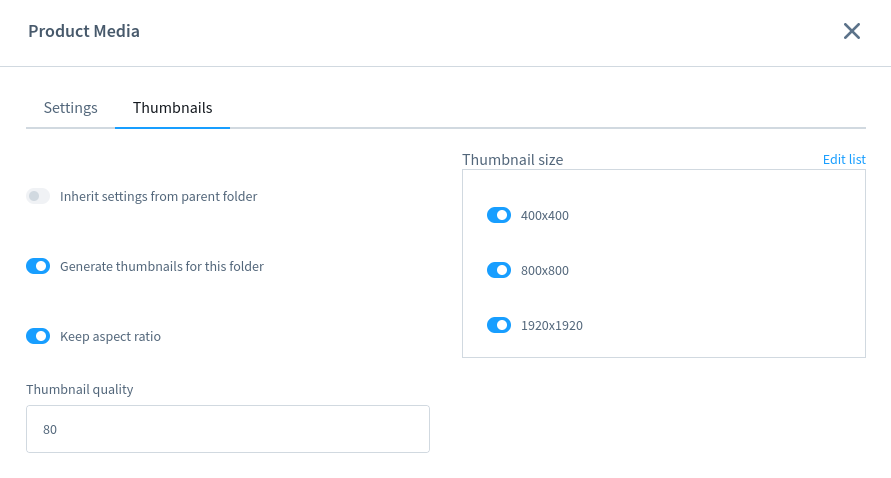
Image processing
While a file is uploaded, it's been automatically resized for the current configuration in Administration > Media section. Thanks to this, the newly uploaded files will be available for all required dimensions. However keep in mind that if your settings have changes, the new dimensions won't be applied automatically for the old images.
Helpers
There are few functions that could be used to extract some crucial information about the media in short way. For example getMainImageUrl or getMedia.
Example how to work with Product's main image:
import { getMainImageUrl } from "@shopware/helpers";

const coverUrl = getMainImageUrl(product);
// coverUrl is now an URL to the resource (or undefined)
Responsive Images
Having additional information about resized images (see thumbnails array in Media object), we are able to use them to define srcset attribute for <img>.
<script>
import type { Schemas } from "#shopware";
const product: Schemas['Product'] = {} // an object omitted
// get the cover media image (main image for a product)
const coverMedia = product.cover?.media
// prepare `srcset` string for available thumbnails
// let the breakpoints be for every width range
const srcset = coverMedia?.thumbnails?.map((thumb) => `${thumb.url} ${thumb.width}w`).join(", ")
</script>

<template>
   <img
    :srcset="srcset"
    :src="coverMedia?.url"
    :alt="coverMedia?.alt"
    :title="coverMedia?.title"
  >
</template>
Live example
Have a look on live example:
The example above shows how to use dimension sizes configured in admin panel as ranges for viewport. However it can be adjusted to your needs.
The src attribute points to the main image URL (not resized) as a fallback.
As long as thumbnails array is fulfilled, the same strategy can be applied when we work with every media object for each entity available in Shopware 6.
3D and spatial media (GLB)
Besides regular images and videos, Shopware media can also be 3D models in the GLB format. When a media object has a .glb file extension, the @shopware/cms-base-layer automatically renders it as an interactive 3D viewer instead of a flat image. This works in:
- CmsElementImage and CmsElementImageGallery — when the assigned media is a
.glbfile - CmsBlockSpatialViewer — a dedicated CMS block for embedding 3D models
The 3D rendering is handled by the SwMedia3D component, which uses TresJS (a Vue wrapper for Three.js) to display the model with orbit controls, lighting, and a perspective camera.
Why SwMedia3D is not auto-imported
Three.js and TresJS are large libraries. To avoid adding their weight to the initial bundle for every project — even those that never use 3D media — SwMedia3D is excluded from Nuxt's auto-import. It is loaded on demand via defineAsyncComponent only when a spatial media object is actually present on the page. Projects that do not use 3D models pay no bundle-size cost.
Enabling 3D support
The cms-base-layer provides the SwMedia3D component and the dynamic imports, but it does not ship the TresJS Nuxt module. To enable 3D rendering in your app, add @tresjs/nuxt to your Nuxt modules:
// nuxt.config.ts
export default defineNuxtConfig({
  modules: [
    // ...other modules
    "@tresjs/nuxt",
  ],
});
You do not need to register SwMedia3D manually. The cms-base-layer already dynamically imports it wherever spatial media is detected. Once @tresjs/nuxt is installed, GLB media in image elements, image galleries, and the Spatial Viewer block will render as interactive 3D viewers automatically.
INFO
If @tresjs/nuxt is not installed, components that encounter .glb media will attempt to load SwMedia3D but the TresJS runtime will not be available. Make sure to install the module before uploading GLB files to your Shopware media library.
